DO NOT COMPLETE THIS TASK UNTIL YOU HAVE TRANSFERRED TO THE NEW SCHOOL YEAR.
Step 1.
Board Level – Setup – Marks & comments – Topics – GO
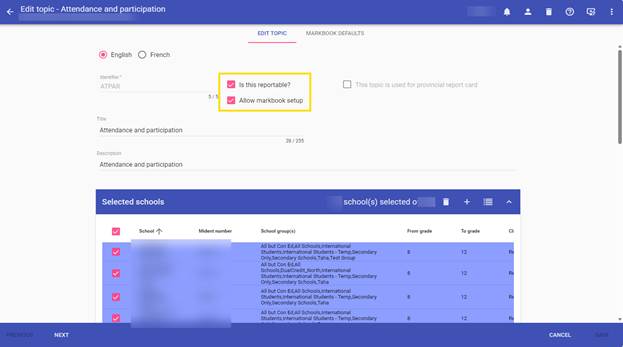
Click on the PINK + sign to add a new Topic to your list.
Type in the Identifier – ATPAR
Title -- Attendance and participation
Description -- Attendance and participation
Select your Secondary school(s)
SAVE
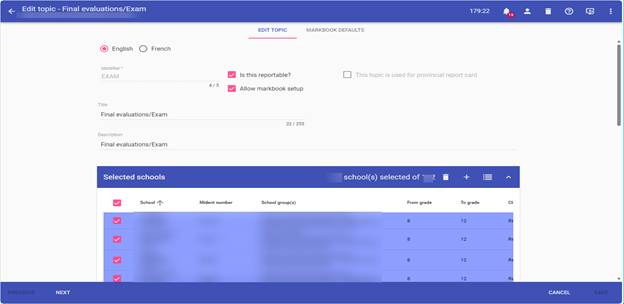
Click on the PINK + sign to add another new Topic to your list.
Type in the Identifier – EXAM
Title -- Final evaluations/Exam
Description -- Final evaluations/Exam
Select your Secondary school(s)
SAVE
Step 2.
Board Level – Setup –Marks & Comments – Achievement Profiles – GO
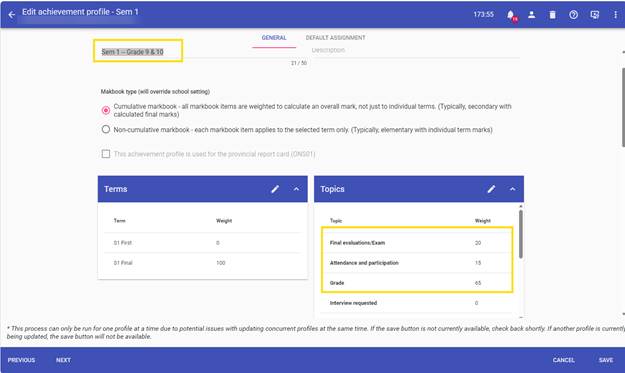
Edit each Secondary Profile – Topics – Edit Pencil
Click the box to add Attendance and participation and Final evaluation/Exam to the profile.
Assign the appropriate weight for -- Grades 9 and 10
- 65%: Classroom work/Grade
- 20%: Final evaluations
- 15%: Attendance and participation
Click on DONE
Change the Title to show that this is for Grade 9 and 10 courses -- Sem 1 -- Grade 9 & 10
SAVE.
Now that you have renamed all the existing achievement profiles so they can be used for Grade 9 & 10 courses and assigned the appropriate weights you MUST add new achievement profiles that we can use for Grade 11 & 12 courses and assign the appropriate weights.
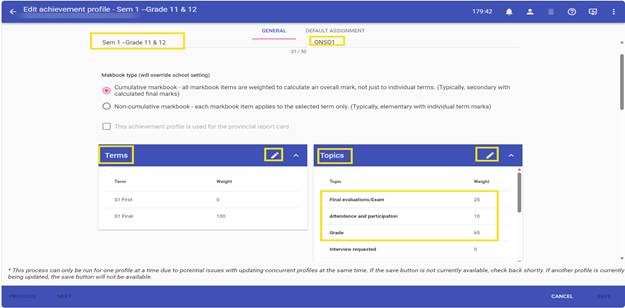
To do this Click on the PINK + sign – enter the Title - Sem 1 --Grade 11 & 12 –add the Terms, Topics and add your secondary school(s) to the profile.
Edit the topics and assign the appropriate weights - Grades 11 and 12
- 65%: Classroom work/Grade
- 25%: Final evaluations (mandatory written exams)
- 10%: Attendance and participation
Click on Done and SAVE each profile. Below is an example of 1 achievement profile you will need to complete this step for each achievement profile needed for Grade 11 & 12.
Step 3.
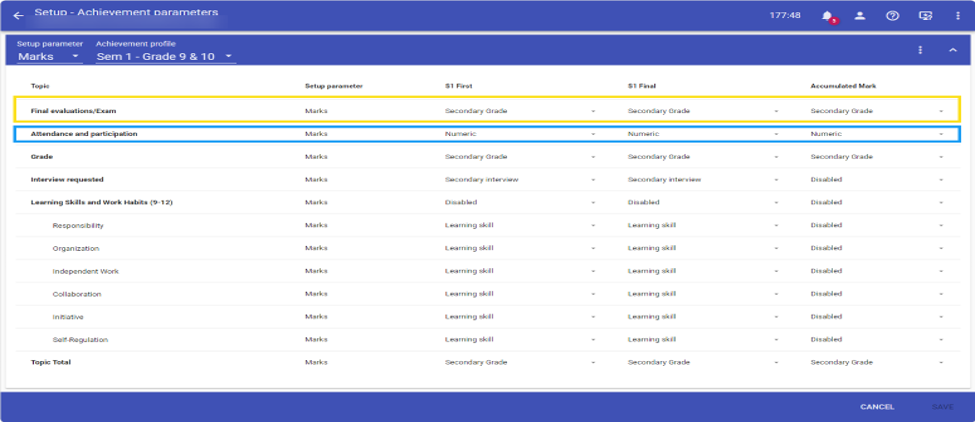
Board Level – Setup –Marks & Comments – Achievement Parameters – GO
Select each Achievement Profile – setup parameter = Marks
Select Secondary Grade for First, Final and Accumulated Mark for topics Final evaluation/Exam
Select Numeric for First, final and Accumulated mark for topics Attendance and participation
SAVE.
Step 4.
https://sis.support.edsembli.com/a/solutions/articles/8000112065?lang=en&portalId=8000006815
Go to the school level – Setup – Class info - Classes – This Year - Assign the correct Achievement Profile to your classes using the newly created Achievement profiles per grade level.
Step 5.
Go to the school Level – Achievement – Tools – Correlate so that everything will sync between Edsembli and ConnectED.